Agentic Engineering on iOS
This page will give you useful resources and tips on how to use Agentic engineering for iOS. It is not an exhaustive tutorial about general setups, but will note interesting resources and basic setup steps regarding Apple Platform Development.
Agents
This section lists repositories containing useful agent files.
- Swift Agents - Paul Hudson's collection of agent files
Skills
This section lists repositories containing various useful agent skills that can be installed.
- SwiftUI Agent Skill - Paul Hudson's SwiftUI Pro skill
- Swift Testing Agent Skill - Paul Hudson's Swift Testing skill
- SwiftData Agent Skill - Paul Hudson's SwiftData skill
- Swift Concurrency Agent Skill - Paul Hudson's Swift Concurrency skill
- The Way - Point-Free skills covering SQLiteData, TCA, Dependencies, SwiftNavigation, and other Point-Free libraries
- SwiftUI Agent Skill - Antoine van der Lee's SwiftUI skill
- Core Data Agent Skill - Antoine van der Lee's Core Data skill
- Swift Concurrency Agent Skill - Antoine van der Lee's Swift Concurrency skill
- iOS Accessibility Agent Skill - Skill covering iOS accessibility
- Swift iOS Skills - D. Pearson's large collection of skills
Curated lists
- Awesome iOS AI - A large list of agents, skills, MCPs, and more
Tools
- Cupertino - Mihaela Mihaljevic's Apple documentation crawler and MCP server
- Sosumi - Mattt's Markdown-compatible scrape of Apple developer documentation that AI tools can parse more easily
Xcode integrations
Xcode from version 26.3 has built-in support for Agents - Codex and ChatGPT from OpenAI and Claude and Claude Code from Anthropic (and also lets you add other providers).
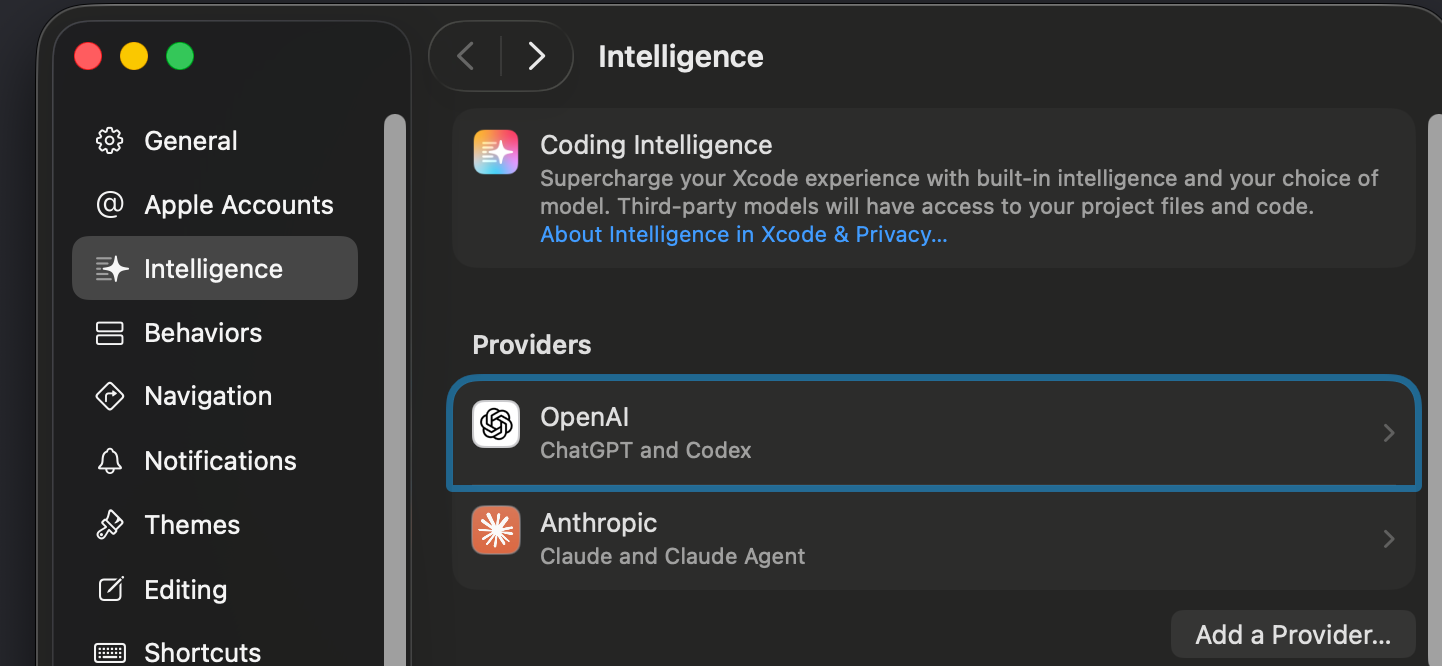
You can access the integrations by going to Xcode Settings > Intelligence and enable various integrations from there. For Codex and Claude Code, downloads are required but they are handled from within Xcode automatically.
Those two tools are integrated into the Xcode UI and have automatically connected newly introduced Xcode-provided MCPs.
External access to Xcode MCP
To enable external tools like Codex (CLI or Mac app), you need to enable support in the bottom part of the same Xcode settings window:
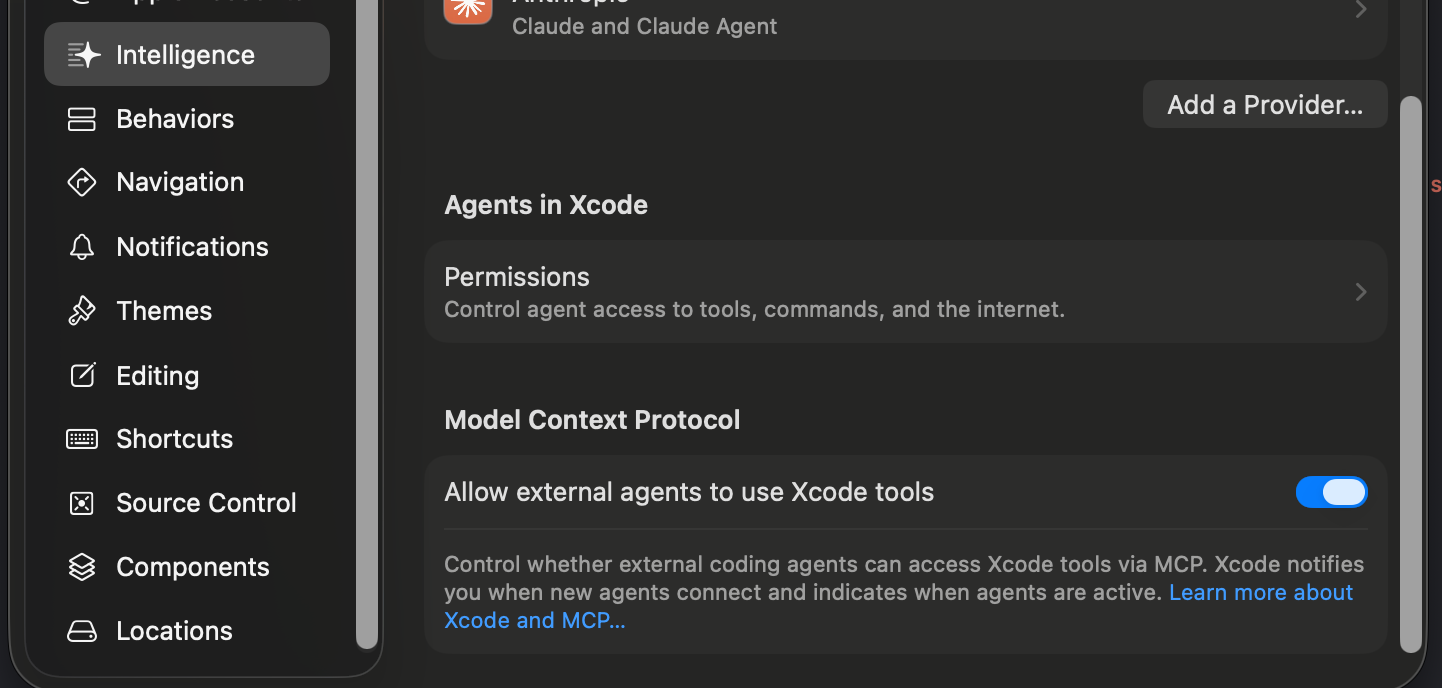
After toggling the option on, visit the Apple documentation for more details, but in short:
Codex (CLI or Mac app)
In Codex (CLI or Mac app), paste and run this from chat:
codex mcp add xcode -- xcrun mcpbridge
When running the command above, Codex may say add is not a valid parameter. Make sure you're using the latest available Codex CLI, even if you're using the Codex Mac app, because it proxies to the CLI.
Claude Code
From Claude Code, paste and run this from chat:
claude mcp add --transport stdio xcode -- xcrun mcpbridge
Cursor
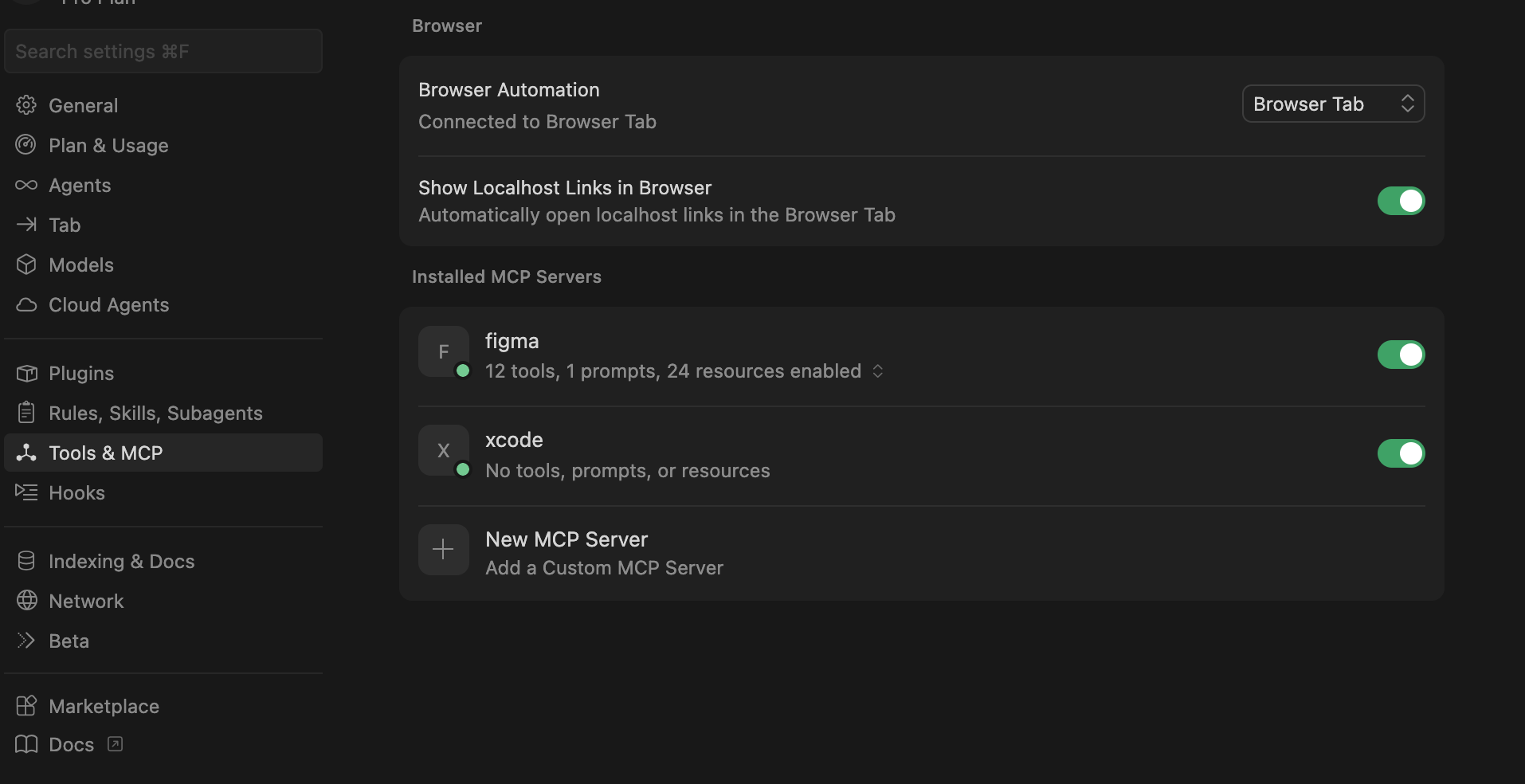
Xcode does not have a native Cursor connector, but you can manually set up Cursor's connection to Xcode MCP. After starting the Cursor app, go to Cursor > Settings > Cursor Settings, find the Tools and MCP section, click on New MCP server, and paste the following JSON config into the opened file (or append it to the existing config).
{
  "mcpServers": {
    "xcode": {
      "command": "xcrun",
      "args": [
        "mcpbridge"
      ]
    }
  }
}
With that done, you should see the Xcode integration in the previous screen, for example:
After connecting
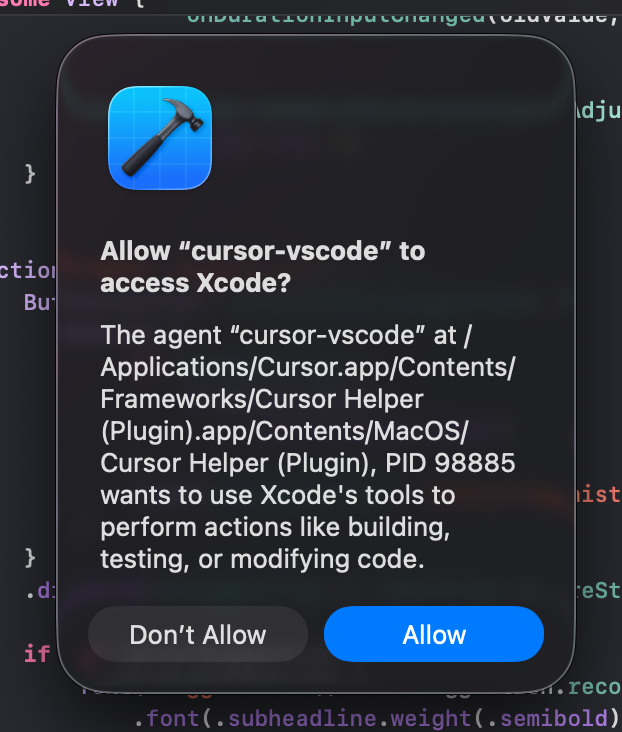
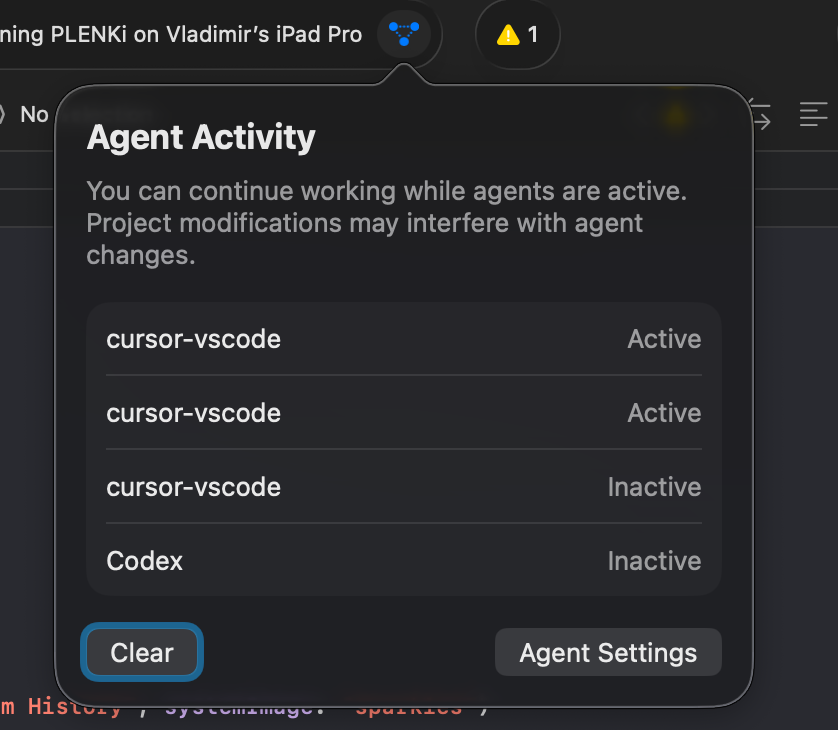
When any external agent connects to Xcode MCP, the Xcode icon will bounce. After focusing Xcode, you will be prompted with an alert to allow external agent access to Xcode MCP. Once access is granted, the external tool should have full Xcode MCP access. A new icon will also be visible in the UI showing the latest MCP connections, for example:
Adding skills and agents to Xcode
Please read this part of the documentation.